
How to Free Up Space on OneDrive
• Example: Mac & Windows
• Steps:
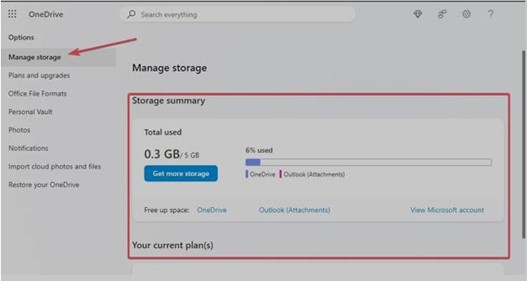
1. Check Storage Usage:
• Open OneDrive → Settings → Manage Storage.
• See what files are using the most space.
2. Stop Unnecessary Syncing:
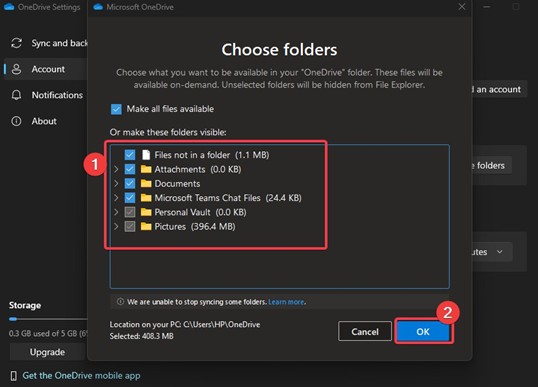
• Right-click OneDrive icon → Settings → Choose folders.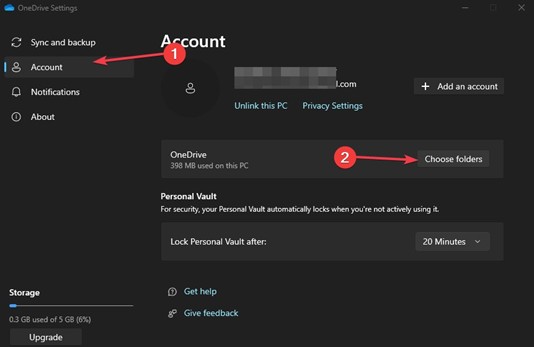
• Uncheck folders you don’t need on your devices.
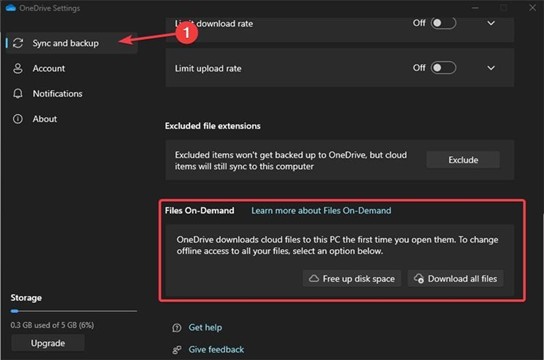
3. Use Files On-Demand:
• Turn on Files On-Demand.
• Files stay online and download only when you opened.
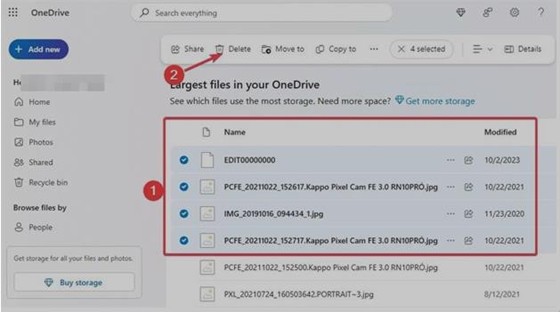
4. Delete Large & Old Files:
• Go to Manage Storage.
• Remove files you no longer need or move them to an
external drive.
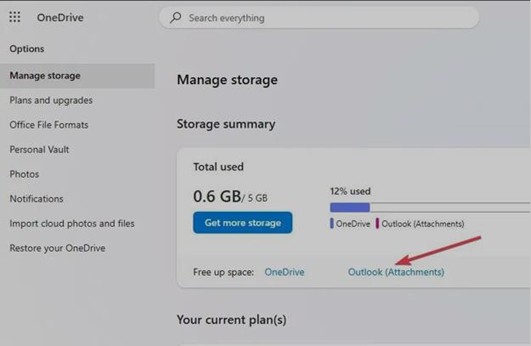
5. Clear Outlook Attachments:
• In storage summary, open Outlook Attachments.
• Delete Large email attachments.
6. Compress Images:
• Resize or compress photos before uploading to save
space.
7. Remove Old Files versions:
• Right-click files → Version History.
• Delete old versions.

8. Share Links, Not Copies:
• Use Share → Copy Link to avoid duplicate files.
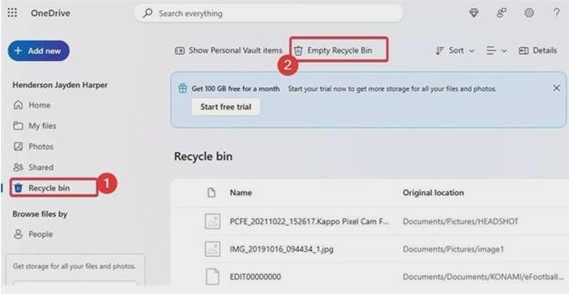
9. Empty Recycle Bin:
• Open OneDrive Recycle Bin.
• Empty it regularly.
10. Upgrade Storage (If needed):
• Upgrade to a larger OneDrive plan or Microsoft 365.