
How to Fix Default Gateway Is Not Available on Windows
How to Fix Default Gateway Is Not Available on Windows
- Example: Windows
- Steps:
1. Check Your Network Connections:
Check if the network cable is connected properly to your PC and router (for wired connections).
If you're using Wi-Fi, make sure your router is ON and working.
Restart your computer.
Restart your router by turning it OFF, waiting 10 seconds, then turning it ON again.
2. Disable or Uninstall Your Antivirus:
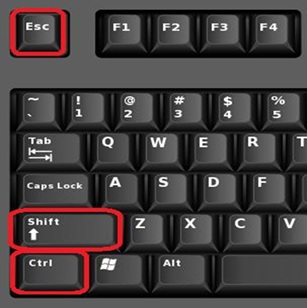
- Press Ctrl + Shift + Esc to open Task Manager.
- Look for your antivirus program in the list.
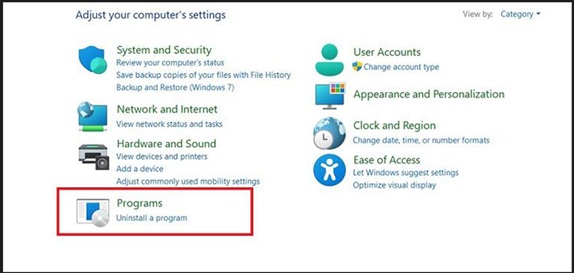
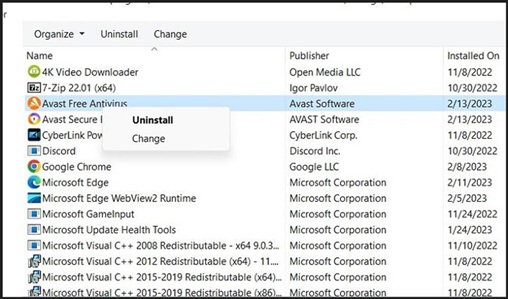
· Right-click it and select Disable.
3. Check and Update Your Network Adapter Drivers:
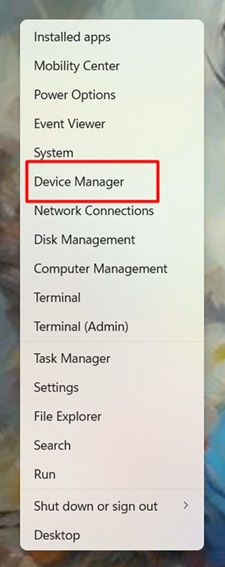
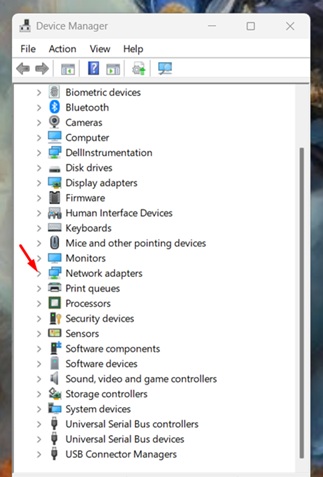
· Right-click the Start button and choose Device Manager.
·
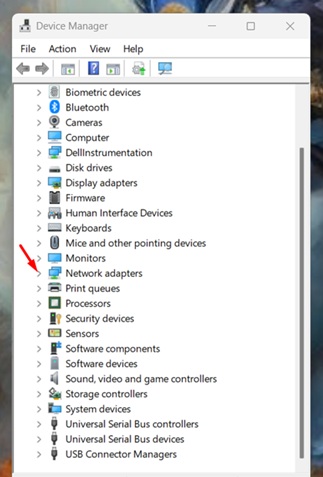
Click Network
adapters to expand it.
·
Find
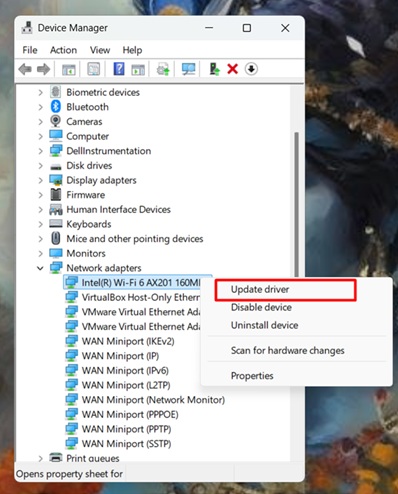
your active network adapter (Wi-Fi or Ethernet).
· Right-click it and choose Update driver.
· Select Search automatically for drivers.
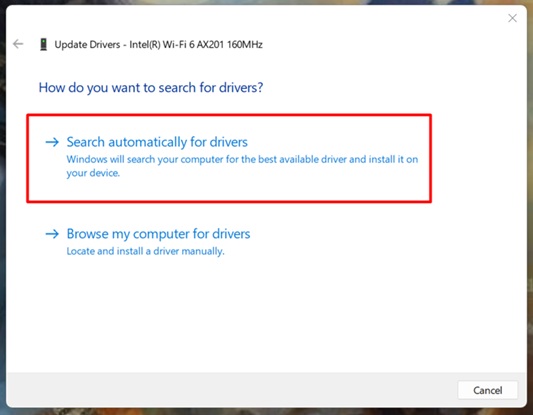
· Let Windows install the latest driver.
·
Restart
your computer.