 November 23, 2026 - BY Admin
How to Convert Images into PDF Files Easily
Introduction
Images are widely used to capture information, share documents, and store important memories. Whether it is a scanned document, photograph, receipt, certificate, or handwritten note, images make information easy to view and share.
However, managing multiple image files can sometimes become difficult. Converting images into PDF documents provides a convenient solution by combining pictures into a single, organized file.
Image-to-PDF conversion is useful for students, professionals, businesses, and anyone who regularly works with digital documents.
1. What Is Image-to-PDF Conversion?
Image-to-PDF conversion is the process of changing image files into a Portable Document Format (PDF) document.
Common image formats supported by conversion tools include:
JPG and JPEG
PNG
BMP
TIFF
GIF (support depends on the tool)
Users can convert a single image or combine multiple images into one PDF file. This makes it easier to organize and distribute documents without sending several separate attachments.
2. Why Convert Images into PDF Files?
PDF files offer several advantages when working with images and documents.
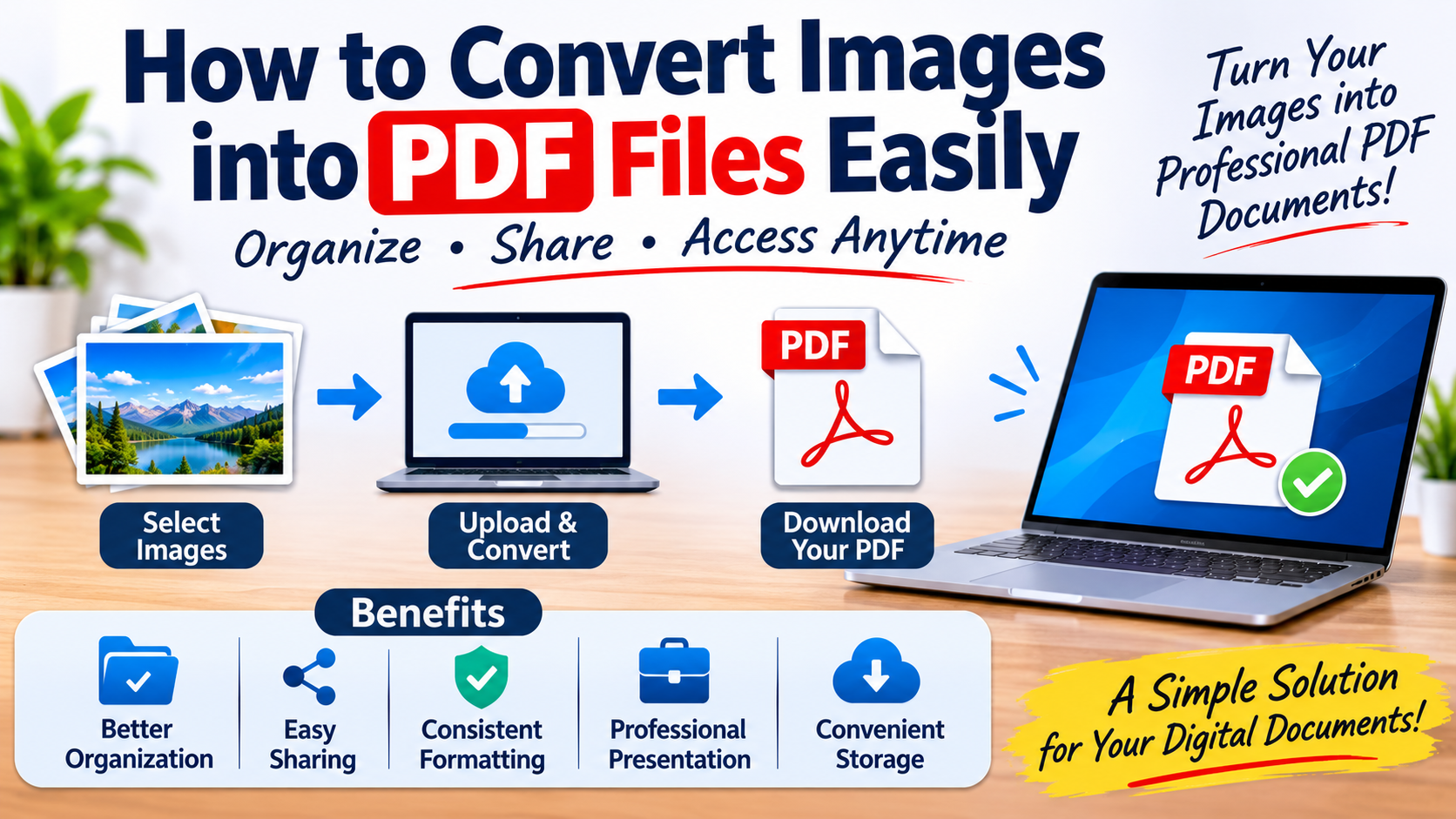
Better Organization: Multiple images can be combined into one document and arranged in a preferred order.
Easy Sharing: A single PDF is often more convenient to share through email, messaging applications, and online platforms.
Consistent Formatting: PDF documents help preserve page layouts and image positioning across different devices.
Professional Presentation: Certificates, reports, invoices, and scanned documents can be presented in a structured format.
Convenient Storage: Related images can be stored together instead of managing many individual files.
3. Common Uses of Image-to-PDF Conversion
Image-to-PDF conversion is useful in many everyday situations.
Education: Students can combine handwritten notes, assignments, and study materials into PDF documents.
Business: Companies can organize invoices, receipts, forms, and reports.
Office Work: Employees can convert scanned documents into files that are easier to share.
Personal Records: People can store certificates, identification documents, and important photographs.
Applications: Documents required for online applications can often be submitted as PDF files when the platform requests that format.
4. How to Convert Images into PDF Files
Converting images into PDFs usually requires only a few simple steps.
Select the images you want to convert.
Open an image-to-PDF converter or use your device's built-in PDF functionality.
Upload or import the selected images.
Arrange the images in the correct order.
Adjust page size, orientation, and margins if required.
Select the Convert or Create PDF option.
Save the generated PDF file to your device.
Before sharing the document, open it and check that all images appear correctly.
5. Choosing the Right Image-to-PDF Tool
Different tools offer different features, so choosing the right converter depends on your requirements.
Some useful features to consider include:
Support for multiple image formats.
Batch conversion for several images.
Image resizing and page orientation settings.
Page ordering and preview options.
Adjustable image quality and compression.
Password protection, when supported.
Easy downloading and file management.
For sensitive documents, choose a trusted tool and understand how it handles uploaded files and personal information.
6. Maintaining Image Quality During Conversion
Image quality is important when converting photographs and scanned documents into PDFs.
If the original image is blurry or low-resolution, the resulting PDF may also appear unclear.
To maintain good quality:
Use clear and high-resolution images.
Avoid unnecessary image compression.
Select suitable page dimensions.
Check that text and important details remain readable.
Preview the final PDF before saving or sharing it.
These steps help produce clean and professional-looking documents.
7. Combining Multiple Images into One PDF
One of the most useful features of image-to-PDF conversion is the ability to combine multiple images into a single document.
For example, a student can combine several pages of handwritten notes, while a business can organize multiple receipts into one monthly expense document.
Arranging images in the correct sequence makes the PDF easier to read and understand.
It is also helpful to use consistent page orientation and suitable margins throughout the document.
8. Image-to-PDF Conversion on Different Devices
Image-to-PDF conversion is possible on many devices.
Windows: Users can use built-in printing features or trusted PDF conversion applications.
Mac: The Preview application allows users to open images and export or save them as PDF documents.
Android: Many devices provide printing or sharing options that allow images to be saved as PDFs.
iPhone and iPad: Users can use built-in document and printing features or compatible applications to create PDFs.
Online Tools: Web-based converters allow users to convert images without installing additional software. However, sensitive files should only be uploaded to services with appropriate privacy and security practices.
9. Common Problems and How to Avoid Them
Sometimes image-to-PDF conversion may not produce the expected result.
Common problems include:
Blurry Images: Use better-quality original images and avoid excessive compression.
Incorrect Orientation: Rotate images before conversion or adjust page settings.
Large PDF Files: Use suitable compression settings without making images unreadable.
Missing Images: Confirm that all selected files were imported successfully.
Incorrect Page Order: Arrange images before creating the final PDF.
Formatting Issues: Preview the document and check page sizes before downloading.
Checking these details can prevent common document-sharing problems.
10. The Future of Digital Document Conversion
Digital document management continues to evolve as businesses and individuals adopt more efficient ways to handle information.
Modern conversion tools are becoming easier to use and may include features such as automatic image enhancement, optical character recognition (OCR), cloud storage integration, and document organization.
OCR technology can help identify text inside scanned images, making certain documents searchable and easier to manage.
As digital workflows become more common, simple tools such as image-to-PDF converters will continue to play an important role in everyday document management.
Conclusion
Converting images into PDF files is a practical way to organize information, simplify sharing, and create professional digital documents.
Whether you are preparing school assignments, managing business records, or storing personal documents, image-to-PDF conversion can save time and reduce the effort involved in handling multiple files.
By choosing a reliable converter, maintaining image quality, and checking the final document, you can create clear and well-organized PDFs with ease.